

Why use ACI for flow run execution?
ACI (Azure Container Instances) is a fully managed compute platform that streamlines running your Prefect flows on scalable, on-demand infrastructure on Azure. In this guide, you will:- Create the Azure resources needed to run an ACI worker
- Start a Prefect worker in Azure Container Instances
- Configure an Azure Container Registry (ACR) for your flow images
- Deploy a sample flow with either Python or
prefect.yaml - Run the deployment from the Prefect UI or CLI
Prerequisites
Before starting this guide, make sure you have:- Prefect connected to either Prefect Cloud or a Prefect server that is reachable from Azure Container Instances.
prefectandprefect-azureinstalled in your local Python environment.- An Azure account and user permissions for provisioning resource groups and container instances.
- The Azure CLI installed on your local machine. You can follow Microsoft’s installation guide.
- Docker installed on your local machine.
prefect server start on your local machine is not sufficient unless that server is exposed to Azure.
For example, if you’re running a local server for development, you can start it with:
PREFECT_API_URL and PREFECT_API_KEY point at your workspace.
Step 1. Create a resource group
Azure resource groups serve as containers for managing groupings of Azure resources. Replace<resource-group-name> with the name of your choosing, and <location> with a valid Azure location name, such as eastus.
echo $RG_SCOPE in your terminal. It should be formatted as follows:
Step 2. Prepare ACI permissions
In order for the worker to create, monitor, and delete the other container instances in which flows will run, we’ll need to create a custom role and an identity, and then affiliate that role to the identity with a role assignment. When we start our worker, we’ll assign that identity to the container instance it’s running in.1. Create a role
The customContainer Instances Contributor role has all the permissions your worker will need to run flows in other container instances. Create it by running the following command:
2. Create an identity
Create a user-managed identity with the following command, replacing<identity-name> with the name you’d like to use for the identity:
3. Assign roles to the identity
Now let’s assign theContainer Instances Contributor role we created earlier to the new identity:
AcrPull role to the identity:
Step 3. Create the worker container instance
Before running this command, set yourPREFECT_API_URL and PREFECT_API_KEY as environment variables.
Use a PREFECT_API_URL that the ACI worker container can actually reach:
- For Prefect Cloud, use your workspace API URL.
- For Prefect server, use a publicly reachable or privately networked hostname/IP for your server’s
/apiendpoint.
http://127.0.0.1:4200/api or another localhost address here. Inside ACI, 127.0.0.1 resolves to the worker container itself, not to a Prefect server running on your local machine.
<work-pool-name> with the name of the ACI work pool you want to create in Prefect. Here we’re using the work pool name as the name of the container instance in Azure as well, but you may name it something else if you prefer.
az container create CLI reference.
Step 4. Create an ACR registry
In order to build and push images containing flow code to Azure, we’ll need a container registry. Create one with the following command, replacing<registry-name> with the registry name of your choosing:
Step 5. Update your ACI work pool configuration
Once your work pool is created, navigate to the Edit page of your ACI work pool. You will need to update the following fields:Identities
This will be yourIDENTITY_ID. You can get it from your terminal by running echo $IDENTITY_ID. When adding it to your work pool, it should be formatted as a JSON array:

ACRManagedIdentity
ACRManagedIdentity is required for your flow code containers to be pulled from ACR. It consists of the following:- Identity: the same
IDENTITY_IDas above, as a string
- Registry URL: your
<registry-name>, followed by.azurecr.io

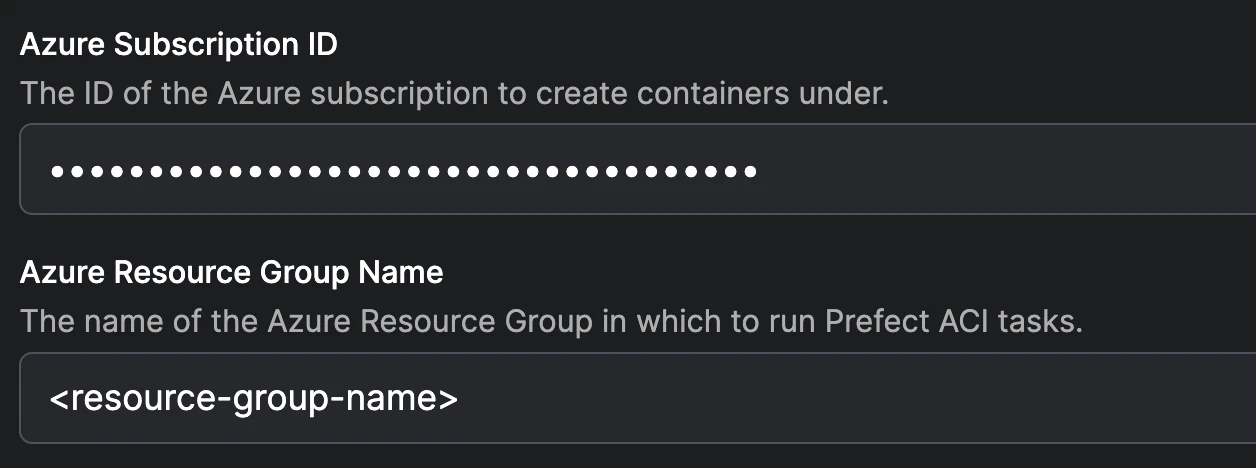
Subscription ID and resource group name
Both the subscription ID and resource group name can be found in theRG_SCOPE environment variable created earlier in the guide. View their values by running echo $RG_SCOPE:
Step 6. Pick up a flow run with your new worker
This guide uses ACR to store a Docker image containing your flow code.1. Confirm that the worker is online
In the Prefect UI, open your work pool and verify that the worker you started in Azure shows as online before deploying a flow.2. Log in to ACR
Use the following commands to log in to ACR:3. Create a simple flow
Create a file namedmy_flow.py:
my_flow.py
4. Create a deployment
Choose either the Python-based deployment flow or aprefect.yaml-based deployment flow.
- Deploy with Python
- Deploy with prefect.yaml
Add a deployment section to This builds the image, pushes it to ACR, and creates a deployment in Prefect.
my_flow.py and run the file:my_flow.py
5. Run the deployment
Once the deployment is created, you can run it from either the Prefect UI or the CLI:Next steps
- For more deployment options, see How to deploy flows with Python
- For more YAML options, see Define deployments with prefect.yaml
- If you’re using Prefect Cloud, consider whether an ACI push work pool better fits your setup